
-
Order Approvals
Requiring order approvals is a great way to monitor merchandise spend and have transparency on what employees are ordering. Please note: An approver is required for all orders, $0.…

-
What are your minimums for printing?
Each item we sell will have an order minimum quantity required to produce a full order. While it varies on an individual product basis, here is a general estimate on order minimum quantities as well…
-
Understanding your Program Settings page
Program Admin Owners have the ability to access the Program Settings page. Program Admins The Program Admins area allows you to: Add a new Program Admin Remove an existing Program Admin Change a…

-
Editing Your Portal - How to Make Changes
Editing Access Per Portal On all portals - edit product listings and add/remove users. On non-credit card portals only - view and approve or reject all orders currently pending approval (if your…

-
Admin email alerts & email customization
We can designate certain emails are sent to contacts in your organization who want more visibility on varying aspects of ordering. We also have the ability to add a custom thank you message on your…
-
Design - Best Practices with Files and Illustrator
As you become familiar with your role as a Designer you'll find how to make the best use of your time and workflows that will let you work effectively. Below are general best practices we want to…
-
Portals & Features FAQ
In this article, we'll show some of the most commonly asked questions and/or requested features we receive. If I want to offer my employees or clients a free gift, how should I do that?…
-
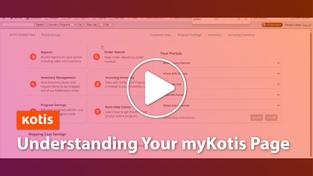
Using MyKotis
Your MyKotis page is the hub of all activity. You'll use this page to access all of the work you do with Kotis, using the upper navigation bar to do the following.…
-
New Portal Set-up
Overview A portal is the store link where your customers, employees, or any other group can go to select or purchase items. When you are ready to set up a new portal for your program,…
-
Warehouse Packing Guidelines
Kotis strives to package your shipments with care so your orders arrive in full and presentable. To do so, the following packing guidelines are distributed to our packing and fulfillment teams,…
-
Proofs - Review Art using Document Info Panel
Before uploading your draft file review each design to ensure it is ready for Production Art. Open the Panel The Document Info panel can be found by going to Window > Document Info.…
-
Proofs - Uploading a Proof
Once you've prepared your draft file and proof images it's time to upload to the job. Upload Proof Images Open the Job Page and look to the bottom left.…
-
Proofs - Preparing Your Images
Once you've completed designing your proof the next step is exporting your files from Illustrator. This topic covers our primary way to export images and settings that work in most cases.…
-
Proofs - Creating a Final Draft File
Once the client has selected a final option, we need to create a final draft file. This will contain only the option the client selected and the listed products it will appear on.…
-
Designer - Keyboard Shortcuts
When using Adobe Illustrator it can be very efficient to use keyboard shortcuts in your workflow. There are a handful of preset shortcuts available. To see the presets you can navigate from the menu…
-
Design - The Basics of Symbols
Video Overview About Symbols A symbol is an art object that you can reuse in a document. For example, if you create a symbol from a flower, you can then add instances of that symbol multiple times to…
-
Custom Inventory Management Text Field
We've recently added a feature to the "Inventory Management" page (where program admins can view their inventory and place orders) which will allow you to customize the field that is currently…
-
Kotis Salesforce App - Install Guide
To install the Kotis for Salesforce App in a Salesforce Production Org, visit the AppExchange listing and click on "Get Now", or use this link: Latest Release (June 2024) To install the app in a…
-
Shopify Install Guide
1. Send Kotis your myshopify.com URL If you're using a custom domain, that is set up on your end and is separate from the account name that we need for integration.…
-
How to place orders via Inventory Management
As a Program Admin, the quickest way to place an order is by entering the order in “Inventory Management”. Benefits Receipt of order confirmation upon submitting your order.…

-
Access Code Portal Protection Feature
This feature allows a portal to be protected by a single access code/password. Anyone who attempts to access the portal will be required to enter the access code before they can view it.…
-
How the the budget feature works
User Groups can be set up to segment ordering between different teams, departments, geographic locations, managers, etc to track spending. A budget can be set to a specific user group to ensure…
-
Create Incoming Inventory Requests (IIR)
Incoming inventory requests (IIR) notify the warehouse that a program has items arriving, and where to check them into your inventory. Important note: We only support IIR's for current SKUs in your…

-
Art - Finding Products (SKUs) in Inventory
Starting a new job, you may be provided a SKU (######-###) in the Other column of a product. This refers to an item stored in our warehouses. This topic covers how to find these items in the Kotis…
-
Design - The Basics of Proof Notes
During the design process we may need to point out an issue to a customer on proof. This topic covers our general approach to using Proof Notes and designing them effectively.…